How can you show image dimensions & size in media library?
You just need a very helpful snippet which you put into functions.php
Here’s a complete snippet to add two sortable columns to the WordPress media library:
- “Dimensions (WxH)” – Displays width × height in pixels.
- “Pixels” – Displays total pixels (width × height) for sorting purposes.
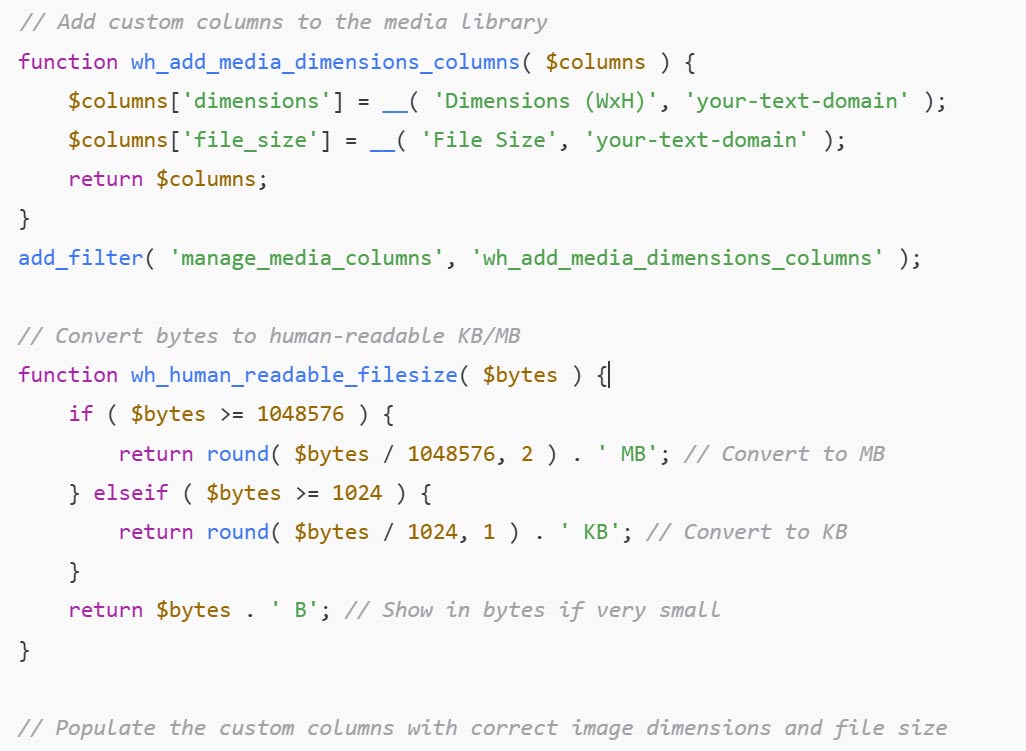
// Add custom columns to the media library
function wh_add_media_dimensions_columns( $columns ) {
$columns[‘dimensions’] = __( ‘Dimensions (WxH)’, ‘your-text-domain’ );
$columns[‘file_size’] = __( ‘File Size’, ‘your-text-domain’ );
return $columns;
}
add_filter( ‘manage_media_columns’, ‘wh_add_media_dimensions_columns’ );
// Convert bytes to human-readable KB/MB
function wh_human_readable_filesize( $bytes ) {
if ( $bytes >= 1048576 ) {
return round( $bytes / 1048576, 2 ) . ‘ MB’; // Convert to MB
} elseif ( $bytes >= 1024 ) {
return round( $bytes / 1024, 1 ) . ‘ KB’; // Convert to KB
}
return $bytes . ‘ B’; // Show in bytes if very small
}
// Populate the custom columns with correct image dimensions and file size
function wh_show_media_dimensions_columns( $column_name, $post_id ) {
$meta = wp_get_attachment_metadata( $post_id );
$file_path = get_attached_file( $post_id ); // Get the full file path
if ( ‘dimensions’ === $column_name ) {
if ( isset( $meta[‘width’], $meta[‘height’] ) ) {
echo esc_html( $meta[‘width’] . ‘ × ‘ . $meta[‘height’] );
} else {
echo __( ‘N/A’, ‘your-text-domain’ );
}
} elseif ( ‘file_size’ === $column_name ) {
if ( file_exists( $file_path ) ) {
$file_size = filesize( $file_path ); // Get file size in bytes
echo ‘‘ . wh_human_readable_filesize( $file_size );
} else {
echo __( ‘N/A’, ‘your-text-domain’ );
}
}
}
add_action( ‘manage_media_custom_column’, ‘wh_show_media_dimensions_columns’, 10, 2 );
// Make the file size column sortable
function wh_make_media_columns_sortable( $columns ) {
$columns[‘file_size’] = ‘file_size’;
return $columns;
}
add_filter( ‘manage_upload_sortable_columns’, ‘wh_make_media_columns_sortable’ );
// Enable sorting for the file size column
function wh_sort_media_columns( $query ) {
if ( ! is_admin() || ! $query->is_main_query() ) {
return;
}
$orderby = $query->get( ‘orderby’ );
if ( ‘file_size’ === $orderby ) {
// Sorting logic placeholder – actual sorting by file size may need more advanced custom sorting
// Currently this sets it to sort by file name path (not actual byte size)
$query->set( ‘meta_key’, ‘_wp_attached_file’ );
$query->set( ‘orderby’, ‘meta_value’ );
}
}
add_action( ‘pre_get_posts’, ‘wh_sort_media_columns’ );
How It Works:
- Adds two columns to the Media Library.
- Fetches image dimensions from
_wp_attachment_metadata. - Displays dimensions as
Width × Heightin one column. -
Displays total pixels (
width * height) in another column. - Makes both columns sortable.